
How To Properly Install The 1.1.1.1 Application On PC And Mobile
Encountering connection errors or slow page loading times when accessing Hitclub? Activate the WARP security layer now to restore your network speed instantly. Check out the detailed guide on how to install the 1.1.1.1 application on iOS, Android, and PC below to optimize your connection yourself in less than 2 minutes.
The nature of 1.1.1.1 warp and why you should use it

1.1.1.1 is an intermediary DNS service developed by Cloudflare—a world-leading internet infrastructure technology corporation. Unlike the default DNS of domestic telecommunications providers, 1.1.1.1 encrypts all your data queries, helping optimize routing and secure personal information.
Once you master how to install the 1.1.1.1 application, your device will enjoy outstanding benefits:
- Increased access speed: Pages load faster thanks to Cloudflare’s optimized DNS server system.
- Bypassing connection barriers: Easily access applications and gaming portals such as HITCLUB, or news sites restricted by IP ranges.
- Data security: Protection against information theft risks when using public Wi-Fi.
Detailed instructions on how to install the 1.1.1.1 application on mobile phones
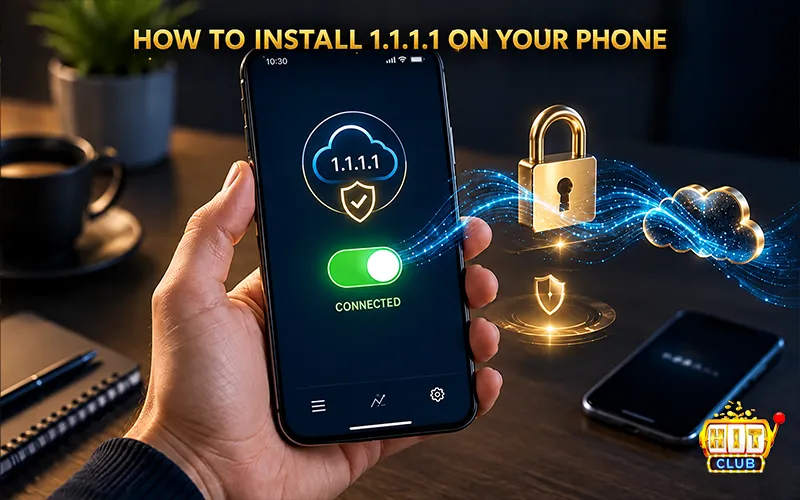
Operating on mobile devices is very simple and takes less than 2 minutes. You can follow the steps for each operating system below.
How to install the 1.1.1.1 application for iphone and ipad (iOS)
For users of the iOS operating system, the installation process is as follows:
- Step 1: Open the App Store on your phone.
- Step 2: Enter the keyword “1.1.1.1” or “1.1.1.1 + WARP” into the search bar.
- Step 3: Tap Get and confirm via Face ID/Touch ID to complete the download process.
- Step 4: Open the downloaded app, tap Next, and select Accept to agree to the terms of service.
- Step 5: Select Install VPN Profile. When the system prompt appears requesting permission, select Allow and enter your device passcode to allow the system to add the VPN configuration.
How to install the 1.1.1.1 application for android devices
For Android devices, the installation process for 1.1.1.1 is similar:
- Step 1: Access the CH Play (Google Play Store).
- Step 2: Search for the phrase “1.1.1.1: Faster & Safer Internet”.
- Step 3: Tap Install and wait for the app to automatically download to your device.
- Step 4: Open the app and toggle the status switch from Disconnected to Connected. When a key icon or the text “VPN” appears on the notification bar, it means you have successfully activated it.
Detailed instructions on how to install the 1.1.1.1 application on computers (PC & Laptop)
If you frequently play games or work on a computer, applying the desktop installation method will provide a much more stable connection compared to manual DNS adjustments.
How to install the 1.1.1.1 application on windows (10/11)
- Step 1: Access the official 1.1.1.1 homepage using a web browser.
- Step 2: Click on the Windows button to download the .msi installation file to your computer.
- Step 3: Run the downloaded file, select Next -> Install, and wait for the software to run automatically.
- Step 4: After installation, a cloud-shaped Cloudflare icon will appear on the right side of the Taskbar (near the clock icon).
- Step 5: Click on the cloud icon and toggle the switch to orange to enable the connection.
How to install the 1.1.1.1 application on macOS
- Step 1: Access the 1.1.1.1 homepage and select the macOS icon to download the .pkg file.
- Step 2: Open the .pkg file, click Continue, and follow the on-screen instructions to complete the installation.
- Step 3: The 1.1.1.1 icon will appear on the Menu Bar at the top of the screen. You just need to click on it and toggle the switch to turn it on.
After understanding how to install 1.1.1.1 on your computer, you will notice a significantly smoother response speed when accessing the HITCLUB gaming portal.
>> See more: Hitclub Agent Registration Guidelines 2026
Fixing common errors after applying the 1.1.1.1 app installation guide
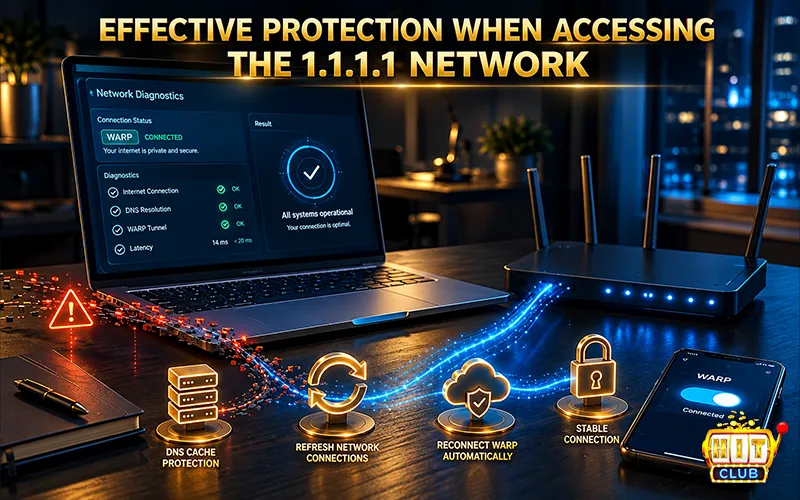
Although it is a very stable software, you may occasionally encounter minor issues during use. Here is how to handle them in practice:
Error 1: 1.1.1.1 is turned on but internet connection is lost or loading is very slow
This case is usually caused by a conflict between the ISP’s DNS server and the application.
- How to fix: Open the 1.1.1.1 app, go to Settings -> select Advanced -> select Diagnostics. Here, switch the connection mode from 1.1.1.1 with WARP to 1.1.1.1 only (or vice versa), then re-enable the connection.
Error 2: The browser is still saving old dns cache
In many cases, even after correctly following the 1.1.1.1 app installation guide, you still cannot access HITCLUB because the browser still remembers the previously blocked IP address.
- How to fix:
- On Mobile: Clear the browser history and cache (Chrome/Safari).
- On Windows: Open the Command Prompt (cmd) as Administrator, type the command ipconfig /flushdns, and press Enter to clear the DNS cache.
Error 3: The application continuously shows “connecting…” without stopping
- How to fix: This error occurs when your Wi-Fi or 4G network connection is too weak at the moment of initiating the connection. Turn off the app, switch from Wi-Fi to 4G (or vice versa), and then turn 1.1.1.1 back on.
Conclusion
Knowing how to install the 1.1.1.1 application is a basic yet extremely useful tech skill for anyone who frequently engages in online entertainment. With just a few simple steps, you can completely eliminate issues like blocked links, network congestion, or lag. Apply the 1.1.1.1 installation guide above immediately to comfortably experience top-tier entertainment at HITCLUB without encountering any obstacles!